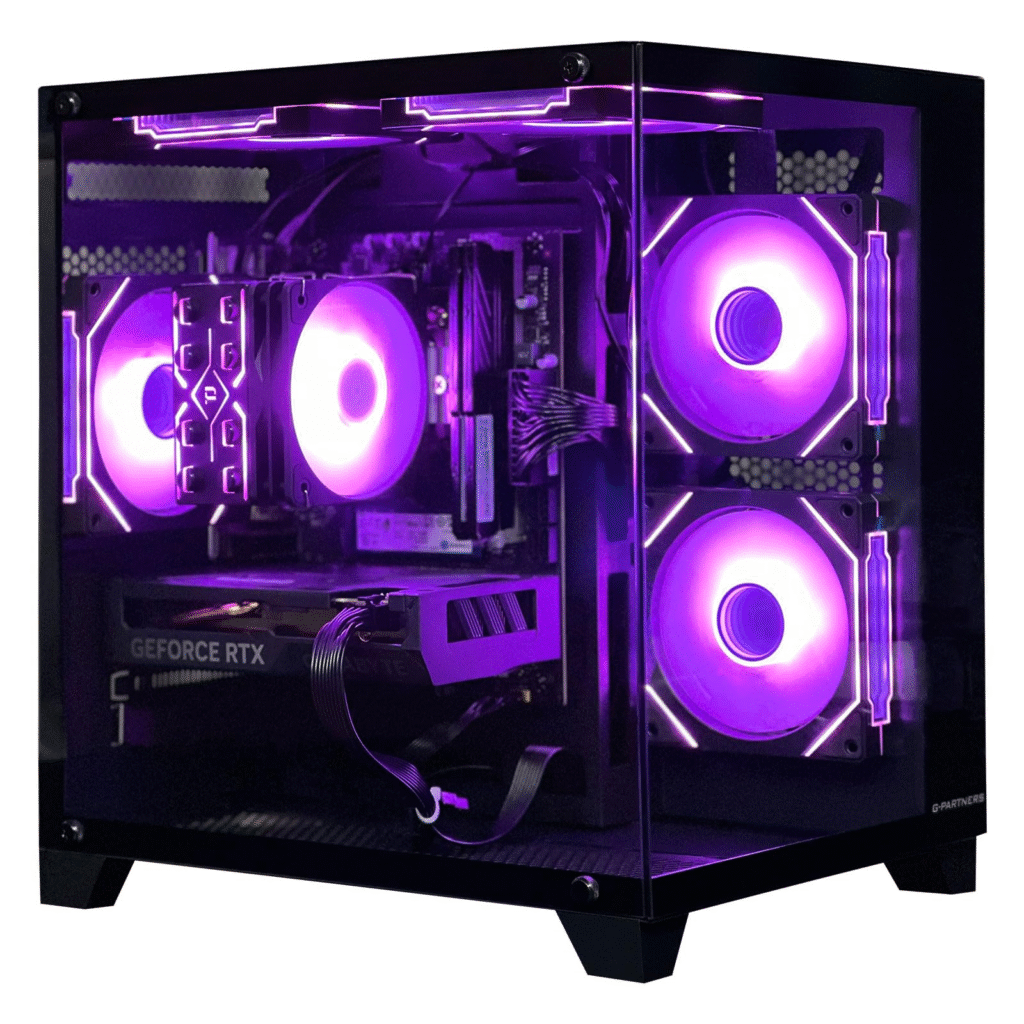
The idea of building your own PC can seem intimidating. It feels like a complex puzzle reserved for tech wizards. But what if I told you it’s more like building a high-tech LEGO set? With the right parts and a good guide, anyone can build a computer that offers incredible value, customization, and the immense satisfaction of creating something with your own two hands.
Welcome to HimariDT! In this guide, we’re discovering the process. We’ll walk you through choosing budget-friendly components, assembling them step-by-step, and bringing your new PC to life. Let’s build something awesome.
Choosing the components
Building on a budget is all about smart choices. You want the best performance for your money without cutting corners on quality. Here’s a breakdown of each component and what to look for.
CPU
The Central Processing Unit is the core of your PC, handling all the instructions and calculations. For a budget build, the best value often comes from CPUs with integrated graphics.
- An AMD Ryzen 5 APU (like the 5600G or newer) is a fantastic budget choice. “APU” means it has a decent graphics processor built-in, so you don’t need to buy a separate, expensive graphics card right away. Alternatively, an Intel Core i3 or Core i5 offers great performance for the price.
- Starting with an APU is the single biggest money-saver for a non-gaming or light-gaming build.
Motherboard
The motherboard connects every single component. The most important thing is ensuring it’s compatible with your CPU.
- Check the CPU’s “socket type”. For an AMD Ryzen 5000 series, you need an AM4 motherboard (a B550 model is a great sweet spot). For a modern Intel CPU, you might need an LGA 1700 motherboard (a B760 model is a solid choice).
- You don’t need the most expensive motherboard. A reliable B-series chipset from a reputable brand (like MSI, ASUS, Gigabyte, or ASRock) will have all the features you need.
RAM
Random Access Memory (RAM) holds the data your PC is actively using. It’s crucial for multitasking.
- 16GB (2x8GB) of DDR4 RAM is the gold standard for budget builds. Aim for a speed of at least 3200MHz.
- Always buy a two-stick kit (2x8GB instead of 1x16GB) to take advantage of “dual-channel” mode, which significantly improves performance. DDR4 is also more affordable than the newer DDR5 and is perfectly fine for a budget system.
Storage
This is where your operating system, games, and files are stored. A fast storage drive is what makes a PC feel snappy and responsive.
- An NVMe M.2 Solid State Drive (SSD). This is a must for your main drive. Aim for at least 500GB, with 1TB being the ideal capacity for the price.
- Start with a fast 1TB NVMe SSD. You can always add a cheaper, larger traditional Hard Disk Drive (HDD) later for storing large files and media.
Graphics Card (GPU)
The GPU renders all the images, videos, and 3D graphics on your screen. This is the most expensive part of a gaming PC.
- If you chose a CPU with integrated graphics (an APU), you can skip this for now! For a budget gaming upgrade later, look at cards like the AMD Radeon RX 6600 or NVIDIA GeForce RTX 4060.
- Start without a dedicated GPU. Test the integrated graphics – they are surprisingly capable for everyday tasks and light gaming (e.g., Valorant, Minecraft). You can add a GPU in a few months when you’ve saved up.
Power Supply
The PSU supplies power to every component. This is the one part you should never cheap out on. A bad PSU can damage your entire system.
- A unit from a reputable brand (Corsair, SeaSonic, EVGA, Cooler Master). Look for 80+ Bronze certification, which guarantees a decent level of efficiency. A 550W to 650W PSU will provide plenty of power for a budget build and room for future upgrades.
- Spending a little extra on a quality PSU is an investment in the safety and longevity of your entire PC.
Case
The case protects your components and helps with cooling.
- A case with good airflow. Look for models with a mesh front panel and included fans. Also, check reviews to ensure it’s easy for beginners to build in.
- You don’t need fancy RGB lighting. Focus on function over fashion. A simple, well-ventilated case is better than a flashy one that suffocates your components.
Putting the components together
This is the fun part! Take your time, stay organized, and keep your motherboard manual handy.
- Work on a large, clean table. Unbox your components. Find a Phillips head screwdriver. Touch a large metal object to ground yourself and prevent static electricity.
- Preparing the motherboard:
- Open the motherboard’s CPU socket by lifting the small metal lever. Align the small triangle on the corner of your CPU with the triangle on the socket. Gently place it in—don’t force it!—and lower the lever to lock it down.
- Find the M.2 slot on your motherboard, unscrew the tiny standoff, insert the drive at an angle, press it down, and secure it with the screw.
- Open the clips on the RAM slots. Align the notch on the bottom of a RAM stick with the notch in the slot. Push down firmly on both ends until the clips click into place.
- Install the motherboard’s I/O shield (the metal plate for your ports) into the back of the case. Screw in the motherboard “standoffs” (small brass screws) that your motherboard will sit on.
- Carefully lower the motherboard into the case, aligning it with the standoffs and the I/O shield. Screw it into place.
- Screw the power supply into its designated spot, usually at the bottom rear of the case.
- Connect the wires. This can be tricky. Your motherboard manual is your best friend here.
- Connect the main 24-pin motherboard power and the 8-pin CPU power cables from the PSU.
- If you have a GPU, connect the PCIe power cables.
- Connect the tiny, fiddly front panel connectors (power button, reset button, USB ports). The manual will show you exactly where each pin goes. Take your time!
- Route your cables through the back of the case and use zip ties to tidy everything up. Good cable management improves airflow and looks clean.
The first boot
Plug in your monitor, keyboard, mouse, and the main power cord. Press the power button. If the fans spin and lights turn on, you’ve succeeded!
As the PC boots, press the key to enter the BIOS (usually DEL or F2). This is your PC’s basic control panel.
- Make sure the CPU, RAM, and storage drive are all detected.
- Find this setting and enable it. This allows your RAM to run at its full advertised speed.
You’ll need another computer to create a bootable USB drive with Windows or a Linux distribution. Plug the USB into your new PC, restart it, and follow the on-screen prompts to install the OS onto your SSD.
Once your OS is installed, the final crucial step is to install drivers. Go to your motherboard manufacturer’s website and download the latest drivers for the chipset, LAN (internet), and audio. If you have a GPU, go to the NVIDIA or AMD website to get the latest graphics drivers.
Congratulations! You’ve successfully built a brand-new PC from scratch. You not only saved money but also gained an invaluable skill and a deep understanding of the machine you’ll use every day. Now go enjoy it!