Ask yourself a terrifying question: If your computer was suddenly gone – stolen, broken, or encrypted by ransomware right now – what would you lose? Family photos, critical work documents, years of creative projects? For most of us, our digital files are irreplaceable.
Many people think they’re safe because they have a single external hard drive. But what if a fire, flood, or theft takes both your computer and that backup drive sitting right next to it? Suddenly, you have nothing.
This is where the 3-2-1 backup strategy comes in. It’s a simple, time-tested rule used by IT professionals, photographers, and data experts to ensure that no single event can wipe out their data. At HimariDT, we’re breaking down this gold standard to give you a clear, actionable plan to make your digital life bulletproof.
Breaking down
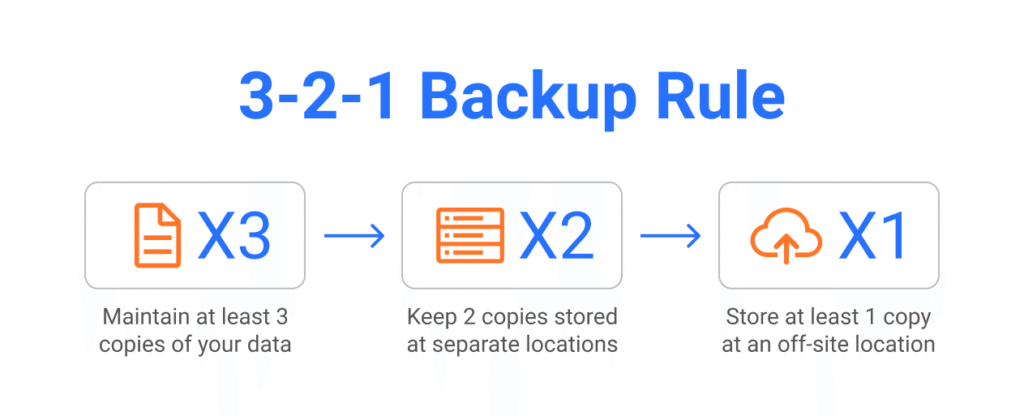
The strategy is beautifully simple. It’s a mnemonic that stands for:
- 3: Keep at least three copies of your data.
- 2: Store those copies on two different types of media.
- 1: Keep one of those copies off-site.
Let’s look at what each rule means in practice.
“3”: Keep three copies of your data
This means you have your original data plus two backups.
Redundancy is the core of any good safety plan. Hard drives fail. Files get corrupted. A single backup is a single point of failure. If your only backup drive dies before you can restore from it, you’re back to square one. With three copies, the odds of three separate failures happening at the same time are astronomically low.
- Copy 1: The original files on your computer’s internal drive.
- Copy 2: A first backup.
- Copy 3: A second backup.
“2”: Use two different storage media
This rule means you shouldn’t rely on just one type of storage technology. The goal is to protect your data from a specific kind of failure.
For example, if you back up your data to two identical external hard drives and that specific model has a manufacturing defect, both of your backups could fail simultaneously. By using two different media, you diversify your risk.
Practical Examples:
- Your computer’s internal SSD + an external USB hard drive.
- An external hard drive + a cloud backup service.
- Your computer’s internal drive + a NAS (Network Attached Storage) device.
“1”: Keep one copy off-site
This is the most critical rule for surviving a true disaster. An off-site backup is a copy of your data that is stored in a different physical location from your original files.
Why is this so important? Because it protects you from localized disasters. If your home or office is subject to fire, flood, or theft, every piece of hardware inside could be destroyed or stolen. Your off-site backup, located somewhere else entirely, would be safe and sound.
Practical Examples:
- The modern method (easiest): A cloud backup service. This is the ultimate “set it and forget it” off-site solution.
- The traditional method: Keeping an external hard drive at your office, a trusted friend’s house, or in a safe deposit box, and updating it regularly.
Putting it into practice
Let’s imagine you’re a freelance writer with all your critical client work in a “Projects” folder. Here’s how you’d apply the 3-2-1 rule:
- Copy 1 (Original): Your “Projects” folder lives on your laptop’s internal SSD. You work from these files every day.
- Copy 2 (Local backup): You have a 2TB external hard drive plugged into your computer. Using software like EaseUS Todo Backup, Windows File History, or Apple’s Time Machine, you set up an automatic backup that runs every evening, saving a copy of the “Projects” folder to this external drive. This is your fast, convenient backup for accidental file deletion or if your laptop’s drive fails.
- Copy 3 (Off-site backup): You subscribe to a cloud backup service like Backblaze or Carbonite. You install their software, tell it to back up your “Projects” folder, and it works quietly in the background, uploading your files securely to their servers. This is your disaster-recovery copy. If your apartment is flooded, this cloud backup will save your business.
With this setup, you are protected against almost any conceivable data loss scenario.
Possible tools you can use
- Local backup hardware:
- External hard drives: Seagate, Western Digital (WD), and LaCie are all reliable brands.
- NAS devices: For more advanced users, a Synology or QNAP NAS is a fantastic central backup hub for your entire home network.
- Backup software:
- Third-party (Recommended): Tools like EaseUS Todo Backup offer powerful features like scheduling, cloning, and incremental backups.
- Built-in OS tools: Windows File History and macOS Time Machine are free, simple, and perfectly adequate for basic local backups.
- Off-site cloud backup services:
- Backblaze or Carbonite: These are true backup services designed to create a full copy of your computer in the cloud for a flat monthly fee. They are the easiest way to handle your off-site copy.
- Google Drive, Dropbox or OneDrive: While primarily file-syncing services, they can serve as an off-site backup for your most critical folders, but they aren’t ideal for backing up your entire system.
Test your backup
A backup you’ve never tested is not a backup – it’s a hope. Once every few months, you should perform a test restore. Pick a random file from your backups (both local and off-site) and try to recover it. This ensures that your files are not corrupted and that you know how the recovery process works before you’re in a panic.
Conclusion
Your digital data is a record of your work, your memories, and your life. Protecting it doesn’t have to be complicated. The 3-2-1 Backup Strategy is a simple but powerful framework that can be easily automated with modern tools.
Don’t wait for a hard drive failure or a disaster to think about your backups. Take an hour this week to set up your plan. You’ll thank yourself for it later.