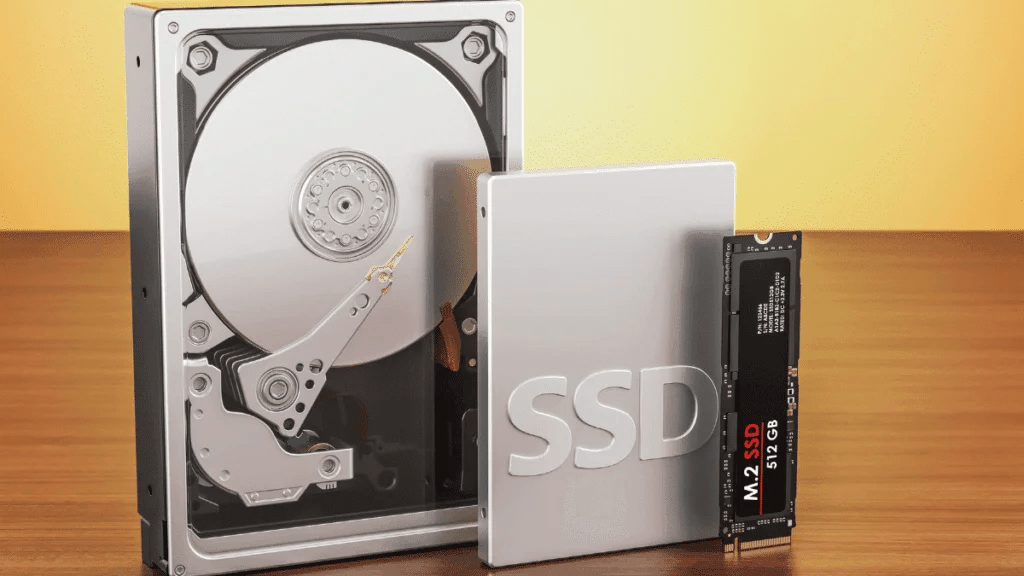
It’s a moment of pure panic. The folder of priceless family photos is gone. Your critical work presentation has vanished. Your external hard drive is suddenly asking to be formatted. The sinking feeling in your stomach is real – you’ve lost important data.
Before you resign yourself to the loss, take a deep breath. In many cases, your files are not gone forever. They’re just temporarily inaccessible.
Welcome to HimariDT. This guide is your emergency action plan. We’ll walk you through the logical steps of data recovery, from the simple checks to powerful software solutions, and tell you when it’s time to stop and call in the professionals.
Stop using the drive immediately
Before you do anything else, this is the single most important rule: STOP USING THE AFFECTED DRIVE IMMEDIATELY.
Seriously. Power it down if it’s an external drive. Minimize your activity if it’s your main system drive.
Why? When you “delete” a file, the data isn’t actually erased. Your computer simply marks the space that file occupied as “available for use”. The file is invisible to you, but its data is still there until something new is written over it.
If you continue to browse the web, install software (even recovery software!), or save new files to that drive, you risk overwriting your lost data permanently, turning a recoverable situation into an impossible one.
The basics
Sometimes the solution is simpler than you think. Before attempting any technical recovery, check these locations.
- The Recycle Bin (Windows) or Trash (Mac): We’ve all done it. Check here first. If your files are there, simply right-click and select “Restore.”
- Cloud storage sync folders: Do you use Dropbox, Google Drive, or OneDrive? Check their respective “Trash” or “Deleted Files” folders online. Most services keep deleted files for 30 days before permanently erasing them.
- Your backups: Now is the time that a good backup strategy pays off. Check your dedicated backup systems:
- Windows File History or macOS Time Machine
- Your cloud backup service (like Backblaze or Carbonite)
- Any external hard drives you use for backups
If you find your files here, congratulations! Your problem is solved. If not, it’s time to move to the next level.
Using a data recovery software
This is the solution for files that have been truly deleted (emptied from the Recycle Bin), lost due to accidental formatting, a virus attack, or partition corruption. This method works as long as the drive is physically healthy.
Data recovery software bypasses your operating system and scans the raw data on your drive. It looks for the “signatures” of common file types (like JPGs, DOCX, MP4s) to piece together the files that have been marked for deletion but not yet overwritten.
Instructions
- STOP USING THE DRIVE. Yes, we’re saying it again. It’s that important.
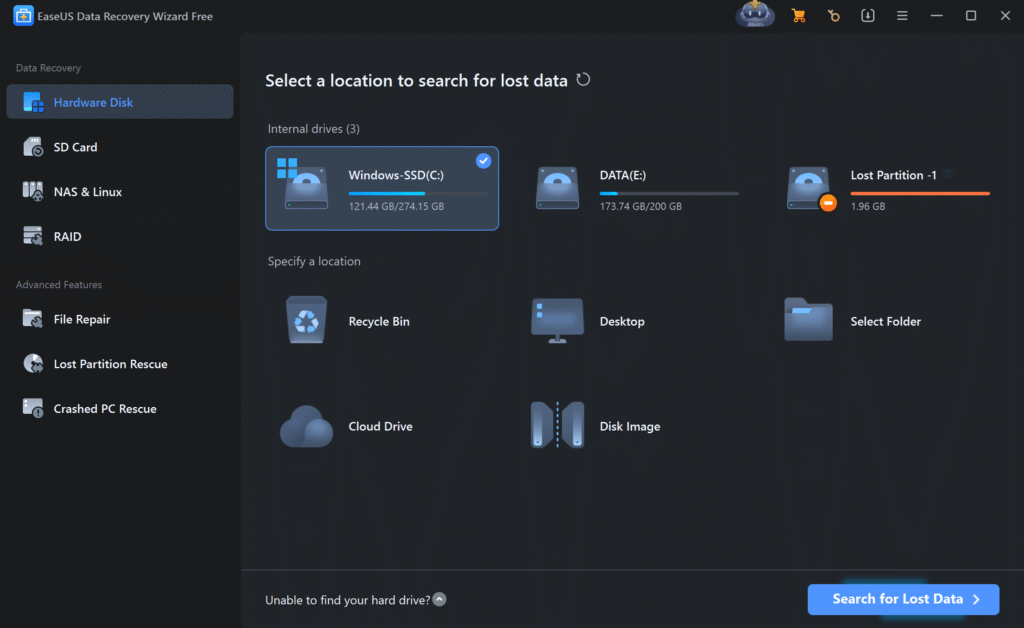
- Download and install the software on a DIFFERENT DRIVE. If you lost files on your C: drive, install the recovery program on an external drive or a different internal drive (D:). Installing it on the affected drive could overwrite your data.
- Choose a reliable tool:
- EaseUS Data Recovery Wizard: A powerful, user-friendly tool with a great reputation. It’s excellent for beginners and can recover data from a huge variety of situations.
- Recuva: A popular free option that is great for simple recoveries of recently deleted files.
- Disk Drill: Another robust premium tool with a good feature set.
- Run a scan: Launch the software, select the drive you want to recover files from, and start the scan. Most tools will offer a “Quick Scan” first, which is fast but may not find everything. If your files don’t appear, run a “Deep Scan” or “Advanced Scan”. This will take much longer but is far more thorough.
- Preview your files: The best software will allow you to preview the files it has found. This is a crucial step to verify that the files are intact and not corrupted before you recover them.
- Recover your files to a DIFFERENT DRIVE: This is the final, critical step. Select the files you want to save and choose a recovery location on a separate, healthy drive. Saving them back to the original drive can corrupt the recovery process and overwrite other files you still want to save.
When to stop and call a professional?
Data recovery software is powerful, but it cannot fix physical damage. Attempting to run software on a physically failing drive can cause catastrophic, permanent data loss.
STOP IMMEDIATELY and unplug the drive if you notice any of these red flags:
- Strange noises (The “Click of Death”): Any clicking, grinding, scraping, or whirring sounds are signs of a mechanical failure inside the hard drive.
- Drive not detected: Your computer’s BIOS/UEFI doesn’t recognize the drive is even plugged in. It doesn’t show up in Disk Management or anywhere else.
- Extreme slowness: The drive is detected but is so slow that it freezes your computer when you try to access it.
- Physical damage: The drive has been dropped, got wet, or was in a fire.
These symptoms indicate a problem with the internal components of the drive, like the read/write heads or the motor. Continuing to run power to the drive can cause the heads to crash into the data platters, literally scratching your data into dust.
Your only option is a professional data recovery service. These companies have specialized hardware and certified cleanroom environments to safely disassemble your drive and recover the data directly from the platters. It can be expensive, but they can save data that no software can.
For SSD users
Typically, SSDs have a feature called TRIM, which fully empties the data after deleting a file, in order to fully optimize the SSD drive. However, this process also nullifies the data you want to recover, making the recovery process technically impossible.
There’s a slim chance that you can still recover it in some rare occasions, but for most ones, the data will totally be gone. So when you’re using a SSD drive to store your important data, make it your #1 priority to implement a robust 3-2-1 Backup Strategy.
Conclusion
Navigating data loss is stressful, but by following a logical process, you can maximize your chances of a successful recovery. Remember the hierarchy:
- Check your bins and backups first.
- Use recovery software for logical issues on healthy drives.
- Call a professional for any signs of physical failure.