We all know we should be backing up our computers. It’s the ultimate defense against a hard drive failure, a ransomware attack, or an accidental “delete all” moment. But when it comes to choosing a method, things can get confusing. Windows has a free, built-in tool called File History. Is that good enough? Or should you invest in a dedicated, third-party backup application?
To understand the difference, let’s use an analogy: think of it like the spare tire for your car.
- Windows File History is the compact “donut” spare that comes with your car. It’s free, it’s already there, and it’s perfectly capable of getting you out of a simple, common jam.
- Third-party backup software is like buying a full-size, premium, all-season spare tire and signing up for a professional roadside assistance membership. It costs a little, but it’s more robust and can handle a far wider range of disasters.
At HimariDT, we’re going to discover both options, so you can choose the right data protection plan for your journey.
About Windows File History
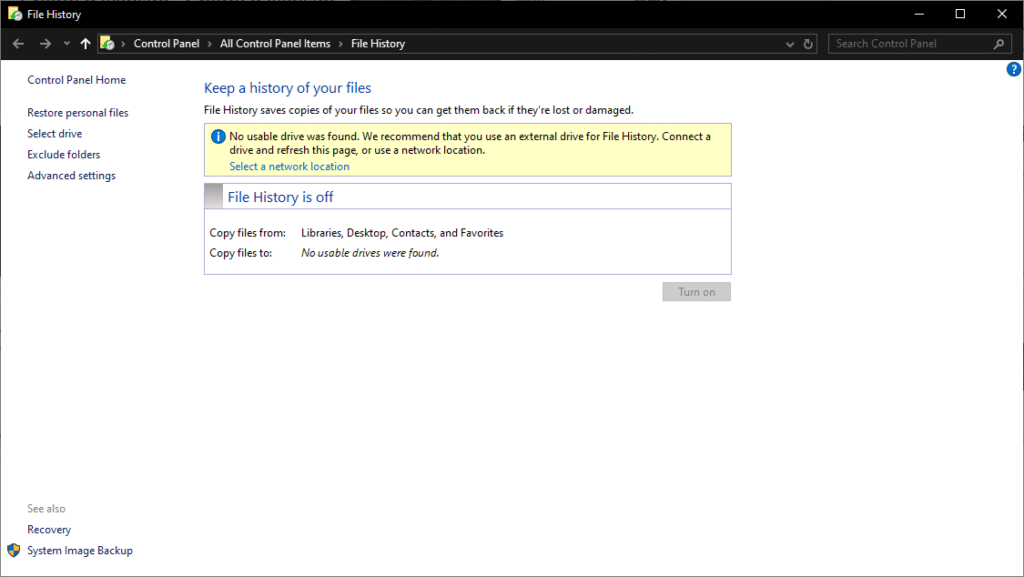
File History is a feature included with Windows 10 and 11. Its primary job is to automatically back up versions of your files to an external drive.
Once you turn it on and connect an external drive, File History automatically scans your main user folders (Documents, Music, Pictures, Videos, and Desktop) on a set schedule. It then copies any new or changed files to the backup drive. This creates a “history” of your files, allowing you to restore a previous version of a document or recover a file you accidentally deleted.
Pros
- It’s 100% free and built-in: It’s already on your PC. There’s nothing to download or purchase.
- Extremely simple to set up: It’s designed for beginners. You basically choose a drive, turn it on, and it works quietly in the background.
- Excellent for versioning: Did you accidentally delete a paragraph and save the document? File History is fantastic for restoring a version from an hour ago.
Limitations
- It only backs up specific user folders: This is its biggest weakness. File History does not back up your programs, your settings, or the Windows operating system itself. If your main hard drive fails completely, you cannot restore your system from a File History backup. You would have to reinstall Windows and all your applications from scratch.
- Limited destination options: It’s designed to work with an external USB drive or a network location. It does not have native support for backing up directly to a cloud service.
- No advanced features: It lacks powerful features like disk cloning, full system imaging, backup encryption, or flexible scheduling options.
Who is it for? The casual home user whose main concern is recovering accidentally deleted photos, documents, or schoolwork. It is infinitely better than having no backup at all.
About third-party backup software
These are dedicated applications built by companies like EaseUS, Acronis, or Macrium, whose entire focus is on comprehensive data protection. They go far beyond simple file copying.
These tools give you a full suite of options, from backing up individual files to creating an exact replica of your entire computer.
Pros
- Full system imaging: This is the killer feature. A system image is a complete snapshot of your entire drive – Windows, all your installed programs, settings, drivers, and files. If your hard drive dies, you can restore this image to a new drive and your computer will be back exactly as it was, saving you dozens of hours of reinstallation and setup.
- Disk cloning: Need to upgrade to a new SSD? A cloning feature copies everything from your old drive directly to your new one, making the upgrade process seamless.
- Total flexibility and control: You can choose to back up anything you want: a single file, a specific folder, an entire partition, or the whole system.
- Multiple destinations: Back up to almost any location you can think of: external hard drives, NAS (Network Attached Storage) devices, and often directly to cloud services like Dropbox, Google Drive, or their own proprietary cloud.
- Advanced features: These tools are packed with professional features like military-grade encryption to protect your backups, incremental/differential backups (which save time and space), and the ability to create a bootable rescue media (a USB stick that can restore your PC even if it won’t start).
Cons
- They usually cost money: While many offer excellent free versions with basic features, the most powerful capabilities (like full system imaging) are typically part of a paid plan.
- Slightly more complex: With more power comes more options, which can present a slightly steeper learning curve than File History’s simple on/off switch.
Who is it for? Anyone who relies on their computer for work, freelancers, small business owners, serious hobbyists, and anyone who simply cannot afford downtime. If the thought of reinstalling Windows and all your software from scratch sounds like a nightmare, you need third-party software.
Conclusion
The right choice depends entirely on how much you rely on your PC and how quickly you need to recover from a disaster.
- Choose Windows File History if: You are a casual home user, your primary concern is recovering a deleted document or photo, and you have an external drive ready to go. It’s simple, free, and a solid first line of defense.
- Choose third-party software if: Your computer is critical to your work or daily life. You want complete protection from any disaster, including a total hard drive failure. The ability to restore a full system image is a game-changer that can save you from days of frustration.
The Hybrid Pro-Tip: You can use both! Use File History for its convenient, frequent versioning of your active documents, and use a third-party tool to create a complete system image once a week. This gives you the best of both worlds.
Whatever you choose, don’t leave your digital life to chance. A flat tire is an inconvenience; a total data loss can be a catastrophe. Pick a strategy, set it up today, and drive with peace of mind.