In the world of PC utilities, few names are as recognizable as EaseUS. For years, their software has appeared in countless “best of” lists, promising to rescue us from digital disasters, organize our chaotic hard drives, and safeguard our precious data. But with so much marketing, it’s fair to ask: does the software live up to the hype?
Is EaseUS a suite of essential tools for the modern PC user, or is it just another collection of aggressively marketed freemium software?
Welcome to HimariDT. Today, we’re taking a deep, critical, and unbiased look at EaseUS – both the company and its three flagship products. We’ll explore their strengths, acknowledge their weaknesses, and help you decide if their solutions are the right investment for your needs.
Who is EaseUS?
Founded in 2004, EaseUS has established itself as a major player in the data management software industry. Their core mission has always been to take complex, often intimidating technical tasks and make them accessible to the average user through clean, intuitive interfaces.
Their primary focus is on three key areas:
- Data recovery: Rescuing files that have been lost or deleted.
- Partition management: Organizing and optimizing disk drives.
- Data backup: Protecting files and entire systems from loss.
Over the years, they’ve built a reputation for creating software that is generally reliable and user-friendly, catering to a wide audience from home users to IT professionals.
Their software
Let’s break down the three main tools that form the heart of the EaseUS ecosystem.
EaseUS Data Recovery Wizard
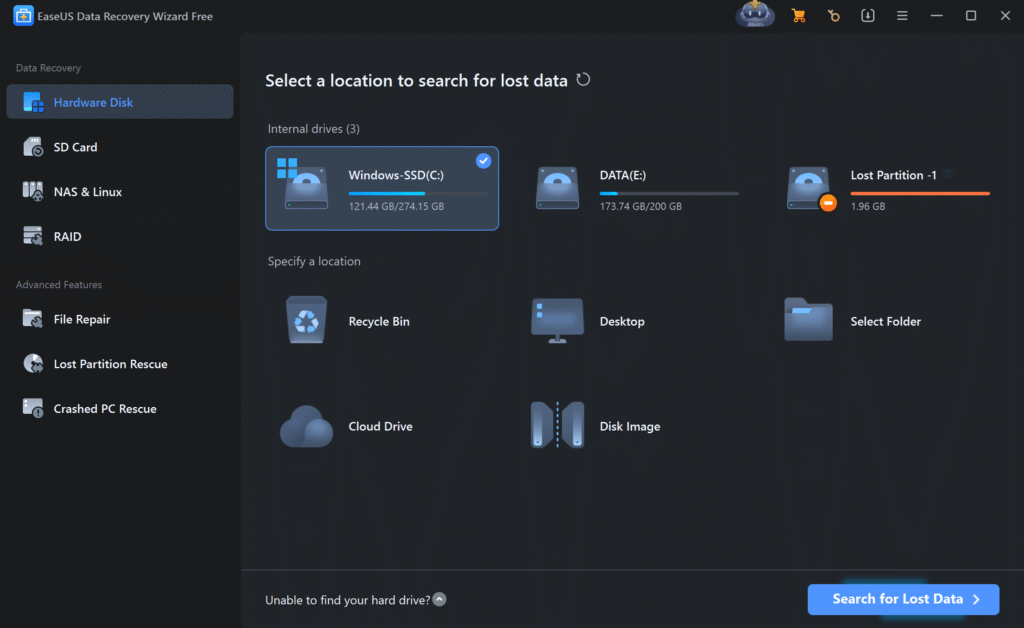
This is arguably their most famous product. It’s the digital emergency service you call when you’ve accidentally emptied your Recycle Bin, formatted the wrong drive, or had a partition suddenly vanish.
The software bypasses the operating system to perform a low-level scan of your drive, looking for the digital traces of files that have been marked for deletion but not yet overwritten.
The Good
- Incredibly user-friendly: The interface is superb. It guides you through a simple three-step process: select a drive, scan, and recover. There’s no confusing technical jargon.
- Powerful preview function: Before you commit to recovering, you can preview found files (like photos, documents, and videos). This is a crucial feature to verify if the files are intact and actually the ones you want.
- High success rate: For logical data loss scenarios (not physical drive damage), Data Recovery Wizard has a genuinely impressive track record of finding and restoring files.
The Not-So-Good
- The free version is a demo: The free version lets you recover up to 2GB of data. While useful for recovering a few lost documents, it’s essentially a functional trial. For any serious data loss, you will need to upgrade.
- Deep scans are slow: A thorough scan of a large hard drive can take several hours. This is normal for any data recovery software, but it requires patience.
- Price model: The software is typically sold as a monthly or yearly subscription, which can be expensive if you only need it for a one-time emergency.
EaseUS Partition Master
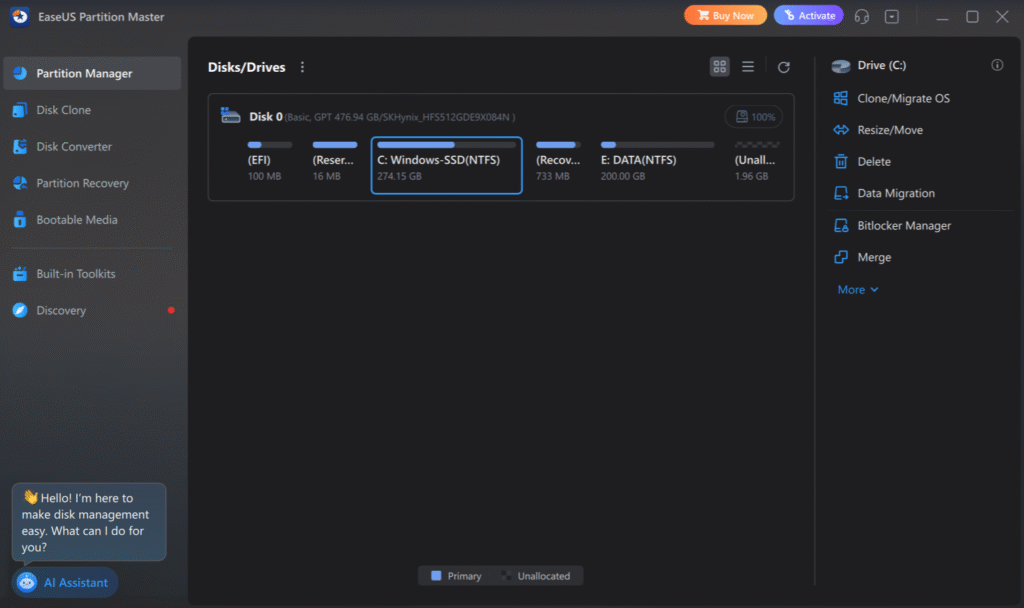
Managing disk partitions used to be a nerve-wracking task reserved for IT experts. Partition Master aims to make it as simple as resizing a window. It’s designed for tasks like creating, deleting, resizing, and merging partitions, or cloning an entire drive.
The software provides a visual map of your disk drives. You can then perform complex actions, like extending your C: drive, by using simple sliders and clear menus.
The Good
- Visual and intuitive: The graphical representation of your drives makes it easy to understand what you’re doing. Drag-and-drop resizing is brilliant.
- The go-to tool for SSD upgrades: The disk cloning feature is a lifesaver. It can copy your entire Windows installation, programs, and files from an old hard drive to a new SSD flawlessly.
- A feature-rich toolkit: It bundles many useful disk utilities into one package, including partition recovery and drive health checks.
The Not-So-Good
- Key features are paywalled: Like their other products, the most powerful and desirable features (like OS migration and partition recovery) are reserved for the paid versions.
- Can be overwhelming: While intuitive, the sheer number of options can still be intimidating for a complete beginner who doesn’t understand the fundamentals of disk management.
EaseUS Todo Backup
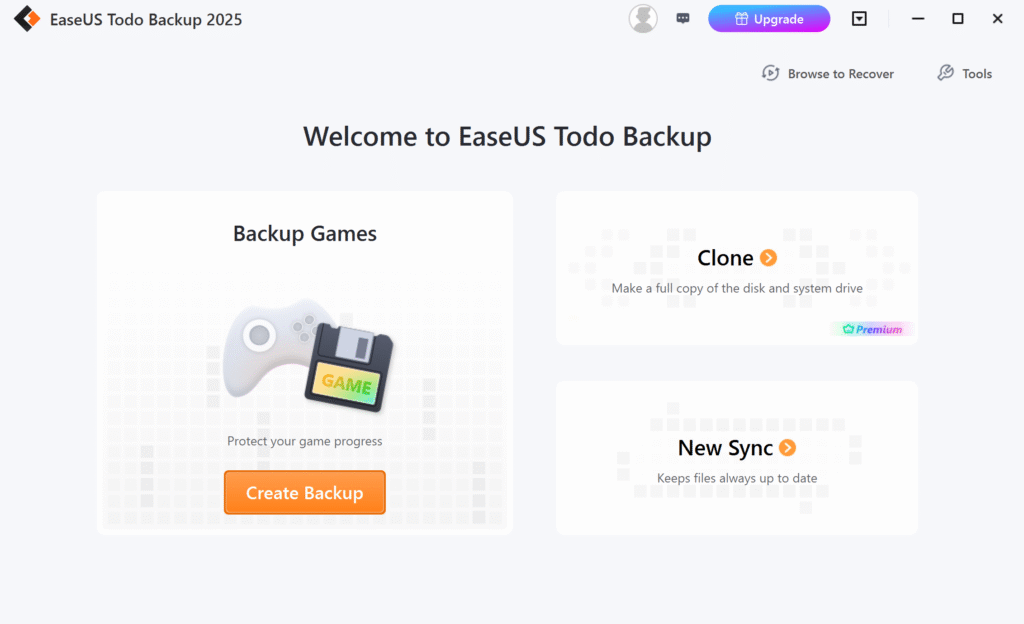
This is their answer to the most important data management task of all: prevention. Todo Backup is a comprehensive solution for creating backups of everything from individual files to your entire operating system.
You can schedule automated backups of specific folders or create a full “system image” – a perfect snapshot of your entire drive – that can be used to restore your PC to a working state after a catastrophic failure.
The Good
- “Set it and forget it” peace of mind: The scheduling feature is excellent. You can set up daily, weekly, or monthly backups that run automatically in the background.
- Full system imaging is a pro feature: The ability to create a full system image is the key differentiator from basic tools like Windows File History. It’s the ultimate safety net.
- The free version is genuinely useful: Unlike their other free offerings, the free version of Todo Backup is quite capable and provides enough functionality for a solid local backup strategy for most home users.
The Not-So-Good
- Cloud integration can be better: While paid versions offer cloud backup, the integration isn’t as seamless as dedicated cloud backup services like Backblaze.
- Interface can feel a bit dated: Compared to the modern look of their other tools, the Todo Backup interface, while functional, can sometimes feel a little less polished.
Analysis
Across their product line, a clear philosophy emerges. EaseUS excels at creating clean, user-friendly interfaces for complex tasks. Their real value is in translating expert-level processes into a series of simple clicks.
However, their business model is heavily reliant on the “freemium” structure. The free versions are designed to solve a small part of your problem and demonstrate the software’s capability, effectively acting as a powerful incentive to upgrade to a paid plan.
The pricing itself is often subscription-based. This provides continuous updates but can be a point of friction for users who prefer a one-time purchase for a tool they might only use occasionally. Is it worth the cost? When you compare the price of a one-year Data Recovery Wizard subscription to the cost of a professional data recovery service (which can easily run into thousands of dollars), the value becomes clear.
Verdict
So, should you use EaseUS software?
EaseUS is an excellent choice for:
- DIY tech enthusiasts and home users who need powerful tools but want a simple, guided experience.
- Anyone needing to perform a one-off, critical task like an SSD upgrade or recovering from a significant data loss.
- Small businesses looking for a cost-effective, all-in-one solution for backup and disk management.
You might want to consider alternatives if:
- You are a highly advanced user who prefers more granular control and command-line interfaces.
- You are strictly opposed to subscription-based software models.
Final Score: 4.5/5
EaseUS has earned its place as a leader in the PC utility space for a reason. They deliver reliable, powerful software wrapped in an accessible package that empowers average users to handle complex tasks with confidence. While their freemium model can feel restrictive, it’s a fair trade-off for the quality of their products.
Our final recommendation is to always start with the free version. It will allow you to see if the software can solve your specific problem. If it can, then upgrading to a paid plan to complete the job is a worthwhile and often necessary investment. For what it sets out to do, EaseUS delivers on its promise.